

Smart Groups bring the information-gathering features of Search/Reports into your Viewing Options by filtering the information in your guest's registration. In addition to your guests appearing in Ungrouped Members or in their Host's group, they can also be sorted into other groups, such as those requesting to be added to a mailing list, those purchasing special options, such as a photo opportunity, or those sponsoring at a particular level. It is recommended that you be familiar with Search/Reports before creating Smart Groups.
Manually moving people out of Smart Groups to other groups will change the answers in their profiles to match the new group where they have been moved.
Creating a Smart Group
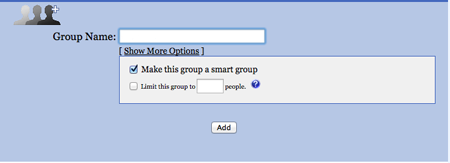
Click on the icon titled Groups (people with plus sign).
Enter a title for the group.
Click Show More Options
Click make this group a smart group
Add a filter to search for the information
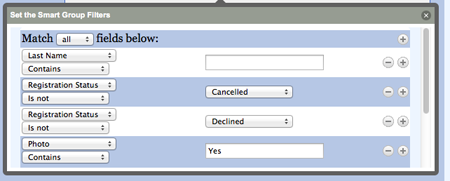
Click Save
Click Finished
Click Add.
The group will appear in the Smart Groups section below Groups.
Smart Group Limits
If you have a limited number of a particular option available, for example you only have 10 photo opportunities available, you can add the limit to the form by choosing the limit option.
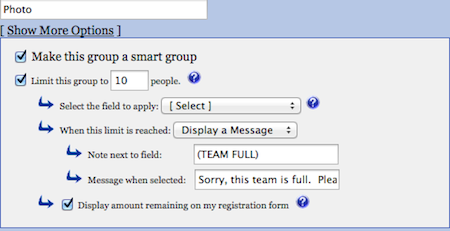
Click Limit this group and add the limit number
Select the field that has the limit from the pulldown
Choose the option for what to do if they limit is reached. The field can be hid or a message can be displayed
Enter a note to appear next to the field
Enter a message to be displayed if you selected that option
You can display the amount remaining on the registration form.
If you already have registrants in your system that match the search criteria, then they will automatically appear in the smart group. Notice that they are not removed from the "normal" group they were originally registered to. Also keep in mind that the registrants in your smart groups are NOT duplicates in your system. They are more like shadows.