

If you have created a nice template with your logo or other graphics, and you would like to print a page of blank name tags to take with you the night of your event, Ministry Sync makes it easy to do this.
To create blank name tags:
Select your label from the Label feature.
Click Customize Selected Label.
Hide all the fields that print information on the label (ie: First Name, Last Name, Table Number, etc.) by clicking the Show / Hide this Object icon.
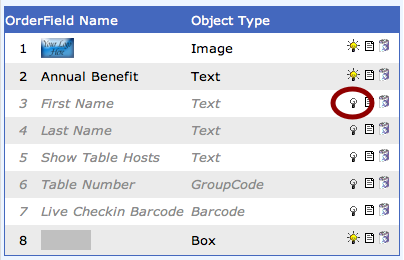
Note: You may want to create a copy of your template first, so that you can continue printing out name tags, in addition to having a blank copy.
Other articles you might enjoy: